SELF-CUSTODY, ON YOUR TERMS

Your phone.
Your keys.
Solid ground.

Find a hardware wallet that fits your phone.
Understand the trade-offs. Make your own call.

iPhone & Android Sources you can inspect
INDEPENDENT WALLET RESEARCH
Explore the essentials
Built around your phone Every limitation, in the open Manufacturer sources, linked
01 / FIND YOUR FOUNDATIONA SMALL, CONSIDERED SHORTLIST

Good fit.
Fewer surprises.

Your phone is the starting point.
Choose how you want to connect, then look closer at the details that matter.

01 — Your phone
02 — Signing connection
03 — Firmware maintenance

8 options to explore

Maintenance may use a different connection from signing. The filter covers routine firmware, not every recovery or fault. Tangem cards have fixed firmware. Read each model’s conditions.

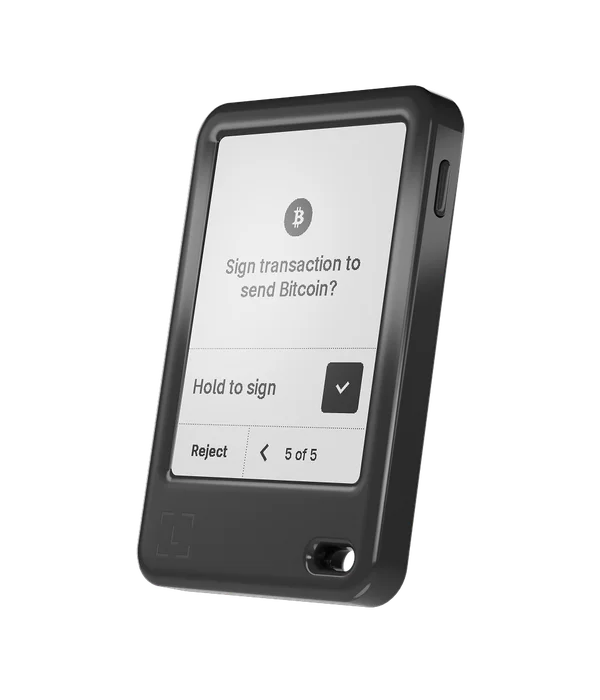
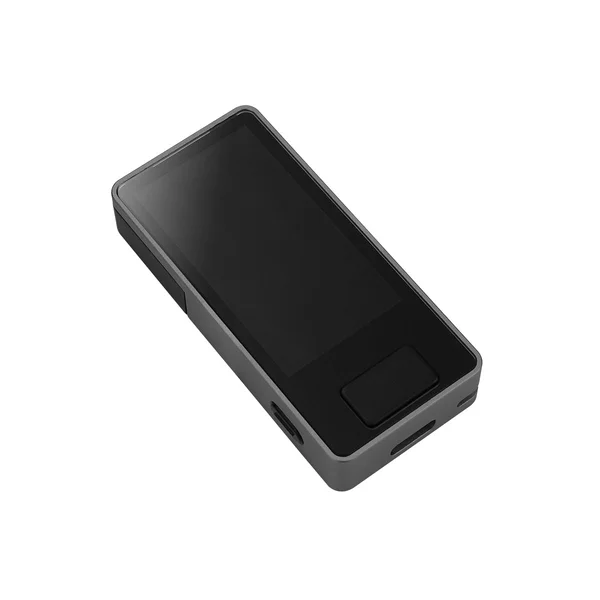
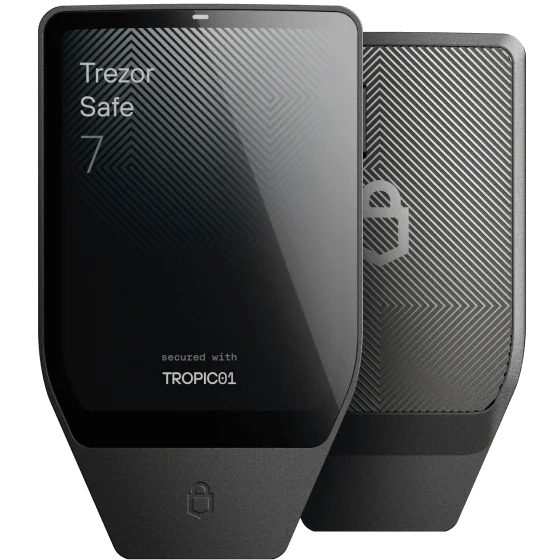
Touchscreen control01Trezor Safe 7
Bluetooth

Mobile maintenance documented

A dedicated touchscreen and Bluetooth connection, with mobile setup documented for both phone platforms.

On iPhone, USB-C supplies power only. Pair through Bluetooth in Trezor Suite.
Explore the details
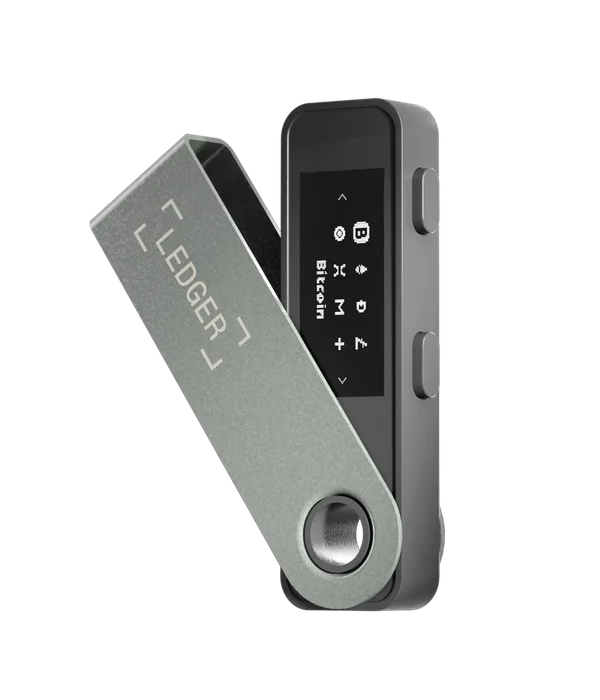
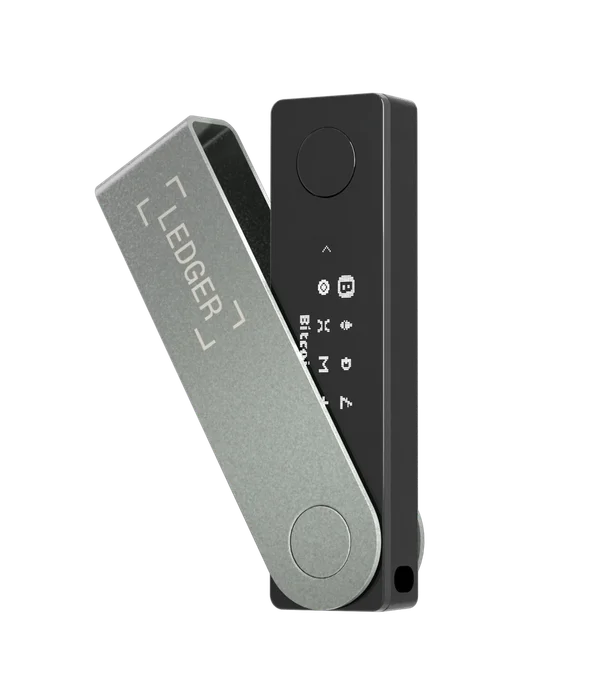
Compact Bluetooth02Ledger Nano X
Bluetooth

Check the update conditions

A compact device with physical buttons. Works with iPhone over Bluetooth and Android over Bluetooth or USB.

Bluetooth OS updates require Ledger OS 2.4.1 or later. Older devices need a wired desktop or Android update first.

Explore the details
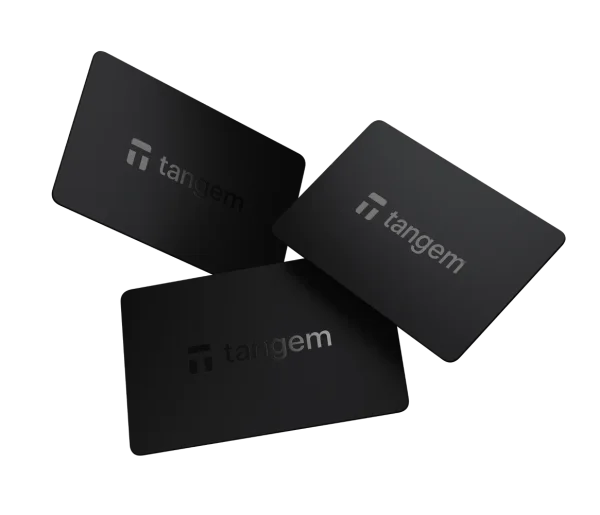
Tap-to-use cards03Tangem Wallet
NFC

Mobile maintenance documented

NFC cards powered by your phone. No battery to charge; transaction details are reviewed on the phone screen.

Full NFC support is required. Some phones can scan a card but cannot create backups. Check your exact model.

Explore the details
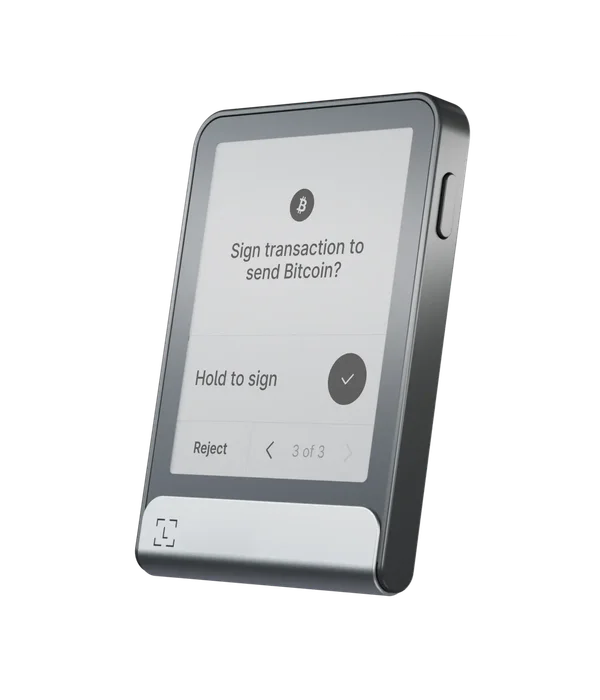
E Ink touchscreen05Ledger Flex
Bluetooth

Mobile maintenance documented

A larger E Ink transaction display with Bluetooth phone use and documented mobile firmware updates.

Routine OS updates work over Bluetooth. A device stuck in Update Mode may need Ledger Wallet on desktop.

Explore the details
Touchscreen Nano06Ledger Nano Gen5
Bluetooth

Mobile maintenance documented

A touchscreen Nano with Bluetooth on iPhone and Android. Its workflow is different from the older two-button Nano models.

NFC serves Recovery Key and Security Key features. Ordinary phone signing uses Bluetooth or supported Android USB.

Explore the details
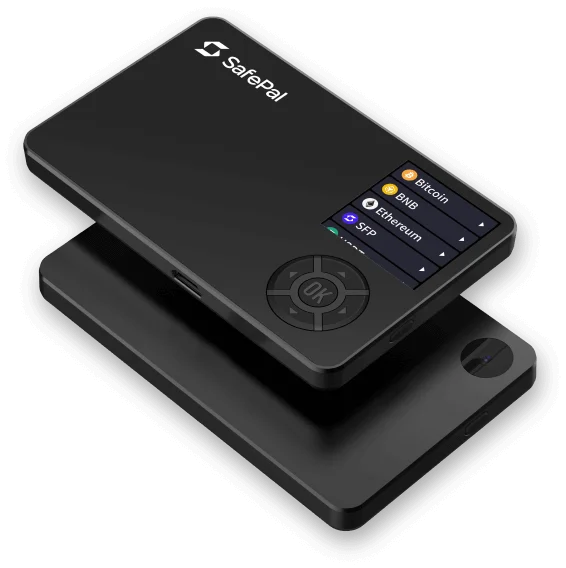
QR signing, PC updates07SafePal S1
QR codes

SAFEPAL

SafePal S1

Computer in update guide

QR signing with the SafePal phone app and a separate colour screen. Plan computer access for firmware updates.

SafePal explicitly says S1 firmware upgrades do not support mobile. Its documented update uses a computer and USB.

Explore the details
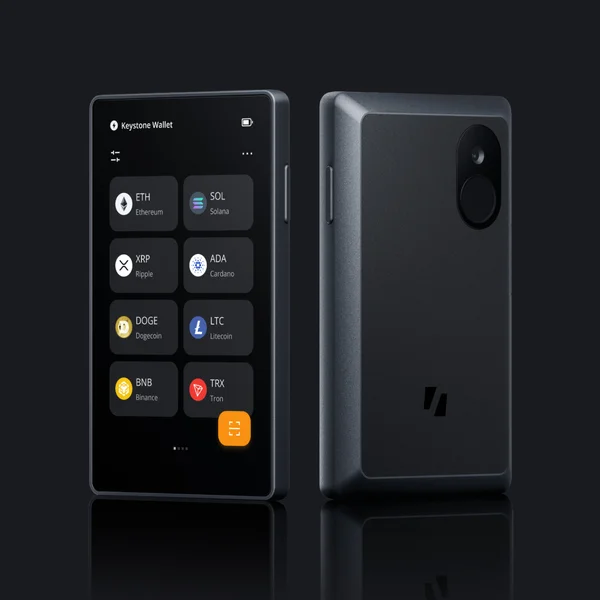
Large-screen QR08Keystone 3 Pro
QR codes

Computer in update guide

A 4-inch touchscreen for QR-based signing with compatible phone wallets. The documented maintenance path includes a computer.

Both official firmware methods list a computer. Below firmware 1.0.4, the first update must use MicroSD.

Explore the details
Bitcoin-focused choice09Blockstream Jade Plus
Bluetooth + QR codes

Mobile maintenance documented

A Bitcoin-focused signer with mobile Bluetooth, QR options and a distinctive PIN-unlocking dependency to understand.

Normal PIN unlocking uses a companion-mediated PIN oracle. QR mode in Blockstream app supports Bitcoin, not Liquid assets.

Explore the details

A match is a starting point. Check your exact phone, firmware and supported coins.

How we research

02 / LOOK AT THE WHOLE JOURNEY

“Works with
your phone”
is just the start.

A useful comparison follows the wallet beyond day one. These are the four moments we look at.

Your phone-only checklist
01

Set it up.

Can you initialise the device and make your backup with the phone you already own?

Setup & backup
02

Use it every day.

Can you review and approve a transaction? Viewing a balance is a different capability.

Transaction signing
03

Keep it current.

Will firmware updates work over your chosen connection, including from an older version?

Firmware & app updates
04

Plan for recovery.

If a device is lost, what backup, replacement hardware and phone access would you need?

Backup dependencies
03 / THE DETAILS, SIDE BY SIDEFOUR STARTING POINTS / DATED SOURCES

Clarity is
in the details.

Connection support is only one part of the picture. Here’s what the manufacturer documentation tells us.

Mobile compatibility and limitations for four starting-point hardware wallets
The essentialsTrezor Safe 7 ↗Ledger Nano X ↗Tangem Wallet ↗Ledger Nano S Plus ↗
iPhone connectionBluetoothBluetoothNFCNot supported
Android connectionBluetooth / USB-CBluetooth / USB-CNFCUSB-C
Review onDedicated colour touchscreenDedicated monochrome displayPhone screen onlyDedicated monochrome display
The update detailMobile firmware installation documented in Trezor Suite.Bluetooth: Ledger OS 2.4.1+. Older OS: wired desktop or Android required.Card firmware is fixed and cannot be updated. The phone app is updated separately.Wired connection required. Confirm the current Android update instructions before purchase.
Read the sourceManufacturer docs Manufacturer docs Manufacturer docs Manufacturer docs

Documented compatibility, not hands-on testing or a security ranking. Recovery and exact phone requirements need a separate check. Read our method. Explore all 9 models and compare up to three.

THE BEDROCK APPROACH

Your decision.
Our homework.

We link the sources, explain the conditions and leave room for what we haven’t verified. So you can make a choice with your eyes open.

Meet the method
BUILT ON EVIDENCE / NOT ASSUMPTIONS

YOUR SHORTLIST

Compare your options.

Based on dated manufacturer documentation. Source-review dates and conditions are shown for each model.